Connect field installation with client operations.
The Installer Mobile App gives field teams a guided path from work order to commissioned charger. The Client Portal gives clients the visibility and access control to manage what happens next.
Client Portal
The Client Portal: visibility and control, once installation is underway.
Built for clients, operators and their authorised colleagues, not for day-to-day charger configuration, which stays with the installer in the field.
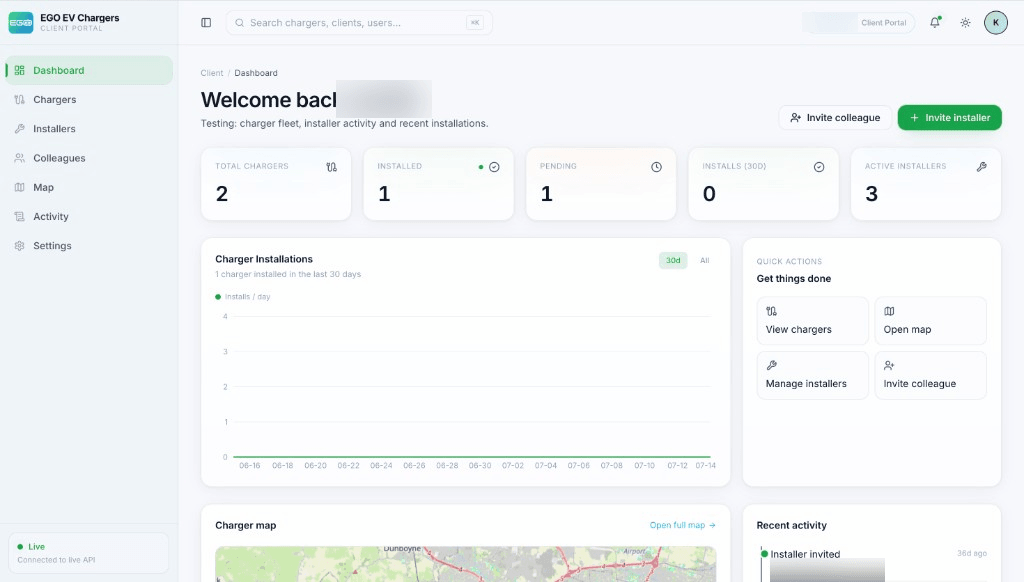
Invite and manage installers
Invite installers by email, and suspend or revoke their access as your field team changes.
Invite and manage colleagues
Bring colleagues into the portal with client-admin or view-only access, and change or remove it at any time.
Charger and installation visibility
See every charger’s status, location and commissioning details as installations are completed.
Charger map
View where your chargers are installed across your sites, filtered by installation status.
Activity log
A record of installer invitations, colleague role changes, and charger status updates.
A clean handover
Once an installer completes a job in the field, it moves straight into the charger and installation records you manage day to day.
Installer Mobile App
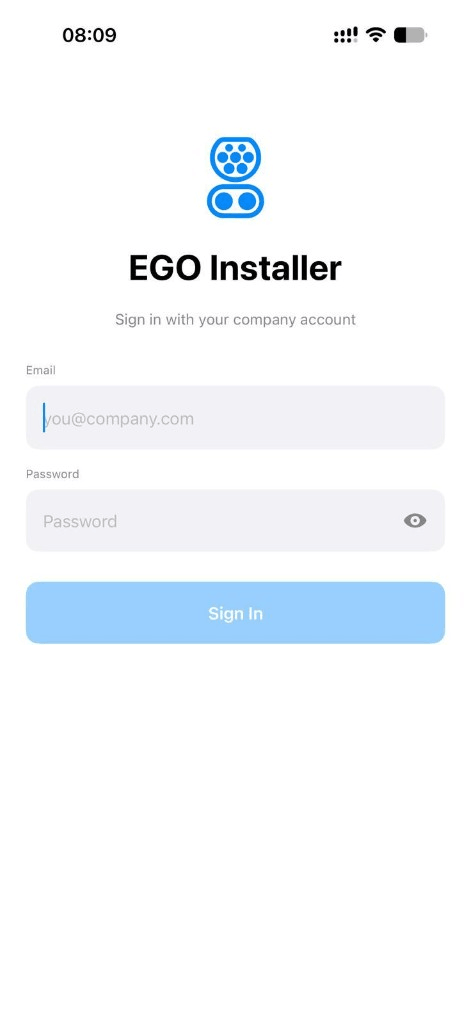
The Installer Mobile App: a guided path for field teams.
Platform-neutral by design, installers work from one company account, whether they’re on their first job of the day or their fiftieth.
Secure company sign-in
Installers sign in with their company account, with a forced password change on first use.
Work orders
Assigned installations appear with the customer and site details the installer needs on arrival.
Bluetooth charger discovery
Discover nearby EGO chargers and connect using unit-specific installer credentials.
Electrical and load-balancing configuration
Set current limits, phases, earthing and load-balancing mode, including multi-clamp setups.
Network and CSMS/OCPP connection settings
Configure Wi-Fi or Ethernet and the charger’s OCPP connection details. The app configures this connection but does not host or run the OCPP server itself.
Review before you apply
Every settings change is shown as a before-and-after comparison before it’s sent to the charger.
Installation completion
A final review confirms the setup, then the installer submits the completed job.
Bring colleagues in when you need them.
Managing a growing charger fleet rarely stays a one-person job. The portal is built for that from the start.
Role-appropriate access
Invite a colleague as a client admin, with full management access, or as a view-only user for reporting and oversight.
Change access anytime
Update a colleague’s role or revoke their access the moment it’s no longer needed.
Shared visibility
Everyone with portal access sees the same chargers, installers and activity, with no separate spreadsheets required.
Built around visibility, not just access.
A few plain-language notes on how access and configuration changes are handled.
Role-based access
Installers and colleagues each see and do only what their role allows in the portal.
Review before it’s applied
Charger configuration changes are shown to the installer as a comparison before they’re sent to the unit.
Activity history
Installer invitations, role changes and charger status updates are recorded in the Client Portal’s activity log.
Unit-specific credentials
Each charger is paired individually during setup, using credentials specific to that unit.
Installer Solutions: frequently asked questions.
A client admin sends an invitation by email from the Installers page in the Client Portal. Once accepted, the installer signs in to the Installer Mobile App with their company account.
See the connected workflow for yourself.
Talk to us about inviting your installers, or log in to the Client Portal if you already have access.